Page 1 of 1
TP 9.2.0: Search & Replace
Posted: Wed Apr 05, 2023 8:42 am
by Willem
When I open the Search & Replace Window it looks like the text in both the Search-field and the Replace-field is selected/marked. So when I start typing, I don't know in which field I am typing. It turns out to be the Search-field, which is good, but I think it's confusing. So the behaviour I expect is that when I open the Search & Replace Window, only the text in the active (Search) field is selected/marked.
Re: TP 9.2.0: Search & Replace
Posted: Sat Apr 15, 2023 2:33 pm
by kikosoft2
I cannot replicate this problem in TP 9.2.0. When I go to "Search" in the menu, and select menu item "Replace...", I get something like this:
_
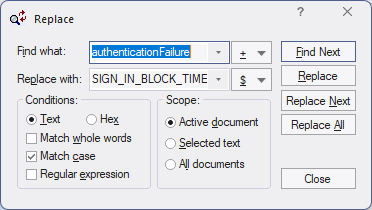
- replace.png (15.17 KiB) Viewed 2893 times
What does it look like for you?
I do have to get used to tabbing twice to get from "Find what:" to "Replace with:". Previously you could get there with a single tab, and I've used this daily for years and years. Progress always comes at a cost.

Re: TP 9.2.0: Search & Replace
Posted: Sat Apr 15, 2023 7:46 pm
by bbadmin
You can return to single tabbing by hiding the regular expression builder buttons. The option do do this is on Configure/Preferences/Editor.
Both the search and replace strings are selected when the dialog box is opened and nothing is selected in the active document. This will be fixed in the next release.
Re: TP 9.2.0: Search & Replace
Posted: Sun Apr 16, 2023 8:56 am
by kikosoft2
Thank you for that tip on the <tab> key in the Search & Replace dialog. That worked.
And yes, when nothing is selected in the document, both inputs are selected. I must had something selected when I tried to replicate this problem.
Re: TP 9.2.0: Search & Replace
Posted: Tue Apr 25, 2023 8:06 am
by Willem
Thanks for the hint about hiding the regular expression fields. I had the same 'problem' as kikosoft2

And I'm glad the issue with the selected text will be fixed.