Is it possible using textpad

General questions about using TextPad

Moderators: AmigoJack, bbadmin, helios, Bob Hansen, MudGuard

Post Reply
neeraj.vasudeva
Posts: 3
Joined: Wed Mar 09, 2011 8:08 pm

Is it possible using textpad

Post by neeraj.vasudeva »

Hi,

I am newbie to textpad , so please bear with me. I tried searching on forum to see if anyone else has posted similar issue, but couldn't find any.

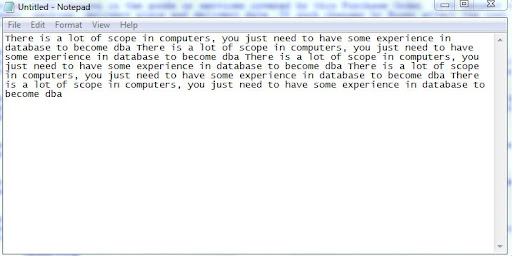
Here goes the issue. I have a following text in Microsoft notepad, refer to below screen shot

Notepad text
Image

Now in order to align this text, i copied this text and pasted it to microsoft word and performed a Justification operation , which resulted in below output

Microsoft word output

Image

This issue is when i copy stuff back from microsoft word to textpad , it losses the justification and it leads to this, refer to below screenshot

Image

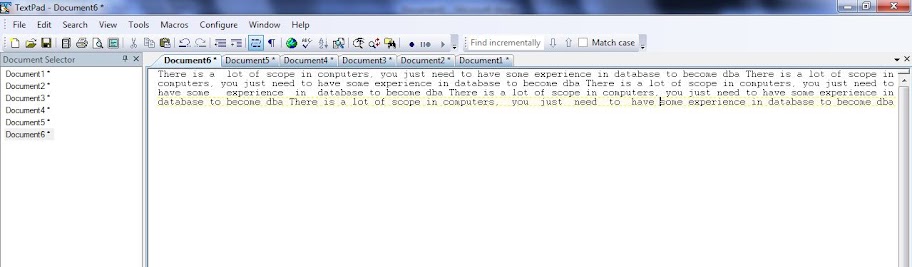
where as i want something like this in textpad, refer to below screen shot. Basically i want that textpad should insert some blank spaces in between words to align it ( as of now i have manually inserted the spaces between words to align it in textpad which is not a good solution if i have too much data ) ... also wanted to for some strange reason align option occasionally is disabled in my textpad , i don't know the condition when it gets enabled
Image

So is it possible to do this in textpad ??
ak47wong
Posts: 703
Joined: Tue Aug 12, 2003 9:37 am
Location: Sydney, Australia

Post by ak47wong »

Welcome to the forum and thanks for making an effort to explain your problem clearly!

You can justify text in TextPad, but you need to turn word wrapping off by clicking Configure > Word Wrap. You'll then see that the text you typed into Notepad is in fact a single long line. By justifying the text you'll break the long line into separate shorter lines and then add spaces to each line to make them the same width.

Decide if you want to make the lines the same width as the window or a specific width like 80 characters. Set this up as follows:

1. Click View > Document Properties.
2. Click the Preferences tab.
3. If you want to use the width of the window, clear Word break at column number.
4. If you want to set a specific width, select Word break at column number and enter the width in the box.

Then, to justify text:

1. Select the text you want to justify.
2. Click Edit > Reformat. This breaks the text into separate lines.
3. While the text is still selected, click Edit > Align > Justify.

To answer your other question, the Align menu commands are disabled when word wrapping is on.
neeraj.vasudeva
Posts: 3
Joined: Wed Mar 09, 2011 8:08 pm

Thanks

Post by neeraj.vasudeva »

Thanks for the exact steps, it works !! but there is a very minor issue because of the column heading that i have on the text which i forgot to mention in my original post, here goes the details

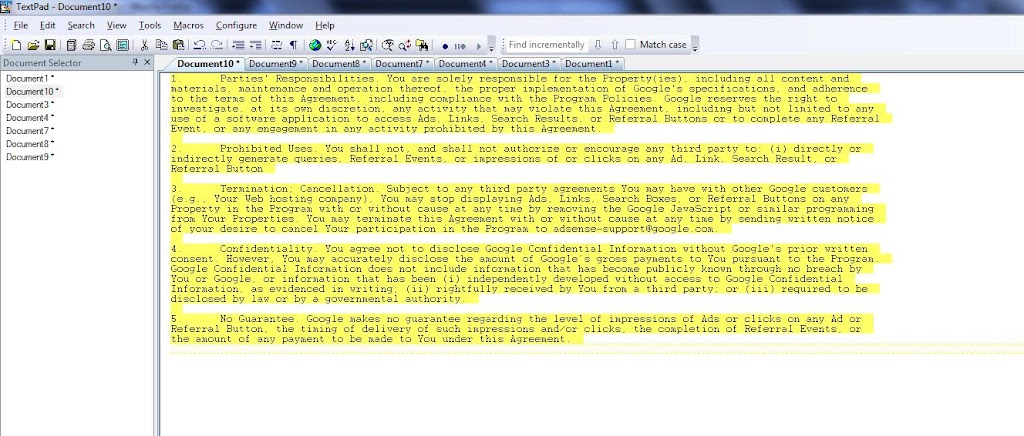
Let's say 5 paragraphs each having a heading as shown in below screen shot

This is how it looks like ( You can ignore the content since i copied from internet just for the sake of presenting a example )

Image

So I turned off word wrap , & I performed the step which you mentioned i.e. go to View > Doc. properties and i specified Word break at column number and enter the width as 115 in the box.

Till this point it is absolutely fine.

Then i went ahead and performed additional step recommended by you i.e. highlight every thing and click on Reformat option... but looks like because of the Headings that i have with my paragraph, it resulted in this

Image

and then i aligned the text by clicking click Edit > Align > Justify

Image

So as u can see , it sort of merged my heading with the actual paragraph which i don't want

:oops: :oops: :oops: :oops: :oops:

What i would have preferred is something like below ( of course i did it manually y adding these heading later on )

Image

So based on all of this looks like because of the heading , things got messed up, do you have any recommendations to handle this situations like somehow avoid considering heading when re-formatting / aligning the text.

One additional info. which i would like to give if it helps in some way i..e all the headings which i have is numbered like the one in above examples i.e. they are easily identifiable from paragraph. I dont know if this can be used somehow :?

In case u wish to play around with the same data what i have presented in above example ( just to avoid re-typing ), u can download the text file from here

http://www.mediafire.com/?rr5waay64i1p7ny

Regards

-Neeraj
ak47wong
Posts: 703
Joined: Tue Aug 12, 2003 9:37 am
Location: Sydney, Australia

Post by ak47wong »

The solution is not to include the heading when selecting the text you want to justify. I didn't actually say to highlight and reformat the whole document; my instruction was to "Select the text you want to justify". In your case, you only want to reformat the text below the headings, so you need to select one paragraph at a time, excluding the heading, and then reformat and justify.

This may be tedious for a long document, so you can record a macro to automate the process:
  1. Start with the cursor on the first heading.
  2. Click Macros > Record.
  3. Press DOWN to move to the next line.
  4. Press HOME to move to the beginning of the line.
  5. Press SHIFT+DOWN to select the line.
  6. Click Edit > Reformat.
  7. Click Edit > Align > Justify.
  8. Press ALT+DOWN to move to the next heading.
  9. Click Macros > Stop Recording.
  10. Click Macros > Playback (or press CTRL+R) to run the macro, or Macros > Multi-play to run it repeatedly.
Incidentally, you can see a list of keyboard shortcuts, such as ALT+DOWN, in the help file under Reference Information > The Keyboard.
neeraj.vasudeva
Posts: 3
Joined: Wed Mar 09, 2011 8:08 pm

Thanks !! that worked

Post by neeraj.vasudeva »

Thanks , that worked !! Macro idea was brilliant.

You saved lot of my time in figuring out how it is suppose to be done using textpad. :D

-Neeraj
ben_josephs
Posts: 2464
Joined: Sun Mar 02, 2003 9:22 pm

Post by ben_josephs »

Alternatively, inset an empty line after each heading:

If the white space following the paragraph number is a tab, use

Search | Replace... (<F8>):
Find what: ^[0-9]+\.\t.*
Replace with: \0\n

[X] Regular expression

Replace All
If the white space following the paragraph number is six spaces, use

Search | Replace... (<F8>):
Find what: ^[0-9]+\.______.* [Replace the underscores with spaces]
Replace with: \0\n

[X] Regular expression

Replace All
Then reformat the entire text.

The following regular expression replacements assume you are using "Posix" regular expression syntax:
Configure | Preferences | Editor

[X] Use POSIX regular expression syntax
You can remove the empty lines with

Search | Replace... (<F8>):
Find what: ^([0-9]+\.\t.*)\n
Replace with: \1

[X] Regular expression

Replace All
or
Find what: ^([0-9]+\.______.*)\n
Replace with: \1 [Replace the underscore with a space]

[X] Regular expression

Replace All
Post Reply