Page 1 of 2
Windows alt codes do not work in TextPad 9
Posted: Sat Jan 28, 2023 5:50 am
by Mr. Code Monkey
I occasionally need to use windows alt codes and this worked in TextPad 8 and earlier.
For example if I hold down Alt and type 0233 on the number pad, it inserts "é".
(This works in all windows programs that support Unicode except TextPad 9.)
In the latest TextPad, a box "" appears instead. Pasting in an "é" from elsewhere displays properly so it's not a file or view thing.
If there is a setting for this, I cannot find it.
Please restore the alt-code typing functionality.
Posted: Sat Jan 28, 2023 8:49 am
by MarJohn
For me, some Alt codes work and some don't.
For example, Alt 0233 doesn't work, but pasting the character from elsewhere displays properly - as you found.
Another one that doesn't display correctly is Alt 0177 (±).
However, Alt 0176 (°) and Alt 0215 (×) both show the expected characters directly in TextPad 9.0.1, running on Windows 10.
Posted: Sat Jan 28, 2023 10:00 am
by AmigoJack
I know what you're talking about:
Alt code. There are at least 3 workarounds:
- Don't type in the TextPad's editor pane, but instead try it in one of his dialog windows, f.e. one of the textboxes in Search. Does it still work there? If yes, just cut it, leave the dialog, and paste it in the editor.
- Use Alt+X to enter the Unicode code point. This isn't decimal, but instead hexadecimal, so your beloved 0176 becomes B0 and 0177 becomes B1. Advantages of this: it goes way beyond CP1252, so you're able to virtually get any grapheme, and it's not bound to a codepage anymore (DOS vs. OEM vs. Windows).
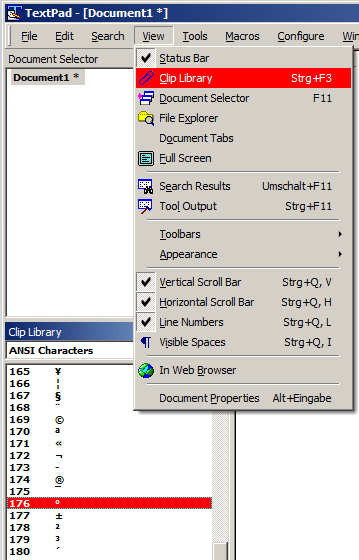
- Use View > Clip Library > ANSI Characters, which exists for decades already, to get a list of all those. Downside: you have to doubleclick it, it's not available via keyboard only.
Posted: Sat Jan 28, 2023 10:49 am
by MarJohn
The 3 points you spelt out, of which I am already aware, are, as you said, workarounds.
In previous versions of TextPad the Alt codes worked just fine, so there is obviously a new problem in this latest version.
IMO we should be pushing for a fix, and not needing to resort to workarounds.
Hopefully the problem will be rectified in the next version.
Posted: Sat Jan 28, 2023 6:58 pm
by Mr. Code Monkey
MarJohn wrote:IMO we should be pushing for a fix, and not needing to resort to workarounds.
Yes, exactly! Especially since cut-and-pasting every single letter or character is an insane way to work.
The alt-x sequence apparently only functions in Microsoft Office/365 -- which we don't use -- and I guess TextPad. The alt-codes work *everywhere* in Windows, including in this browser.
They are the ones we've been using for years to enter characters at full typing speed and with no mouse needed.
Posted: Mon Jan 30, 2023 1:45 pm
by bbadmin
Other ways of inputting characters that are not on the keyboard:
- For accented characters such as é, press Ctrl+' and then e.
- Use the Unicode input editor. Press Alt+X, then type the hexadecimal code of the character in the edit box, followed by Enter.
For more information see "How to Type Multilingual Characters" in the help file.
Posted: Mon Jan 30, 2023 8:09 pm
by Mr. Code Monkey
Thank you for pledging to fix this.
Posted: Tue Jan 31, 2023 6:52 am
by MarJohn
Thank you for pledging to fix this.
+1
Posted: Sat Feb 04, 2023 11:40 am
by bbadmin
I've just come across a handy tool for inputting accented characters which I'll pass on. It's part of Microsoft's PowerToys collection which you can install for free
from their store or github. It's documented here:
https://learn.microsoft.com/en-gb/windows/powertoys/quick-accent
Charmap
Posted: Sat Feb 04, 2023 3:47 pm
by IanOfYork
The Character Map tool is an old Windows utility that is still available.
It displays zillions of characters and let you copy them into the clipboard.
Just add the program as a DOS command in the Tools list
(do not capture output)
or
charmap can be launched directly from a command line.
On my system it is at:
C:\windows\system32\charmap.EXE
Posted: Sat Feb 04, 2023 7:46 pm
by Mr. Code Monkey
Thank you; I was not aware of that workaround.
But note that we use alt codes to input other things besides accented characters. EG ¼, £, ⟺, etc.
Posted: Sun Feb 05, 2023 10:42 pm
by ben_josephs
You can also assign whatever keyboard shortcuts you like (including 2-keypress ones) to the characters in the list at
Configure | Preferences | Keyboard | Categories: Characters
For characters that aren't in that list you can create macros and assign shortcuts to them.
Re:
Posted: Tue Jun 18, 2024 5:42 pm
by ontherun
bbadmin wrote: Mon Jan 30, 2023 1:45 pmThanks for reporting this bug. We'll fix it in the next release.
Well the new version is 9.5.0 is out and the issues with Alt key in Windows 10 is still an issue.
Re: Windows alt codes do not work in TextPad 9
Posted: Wed Jun 19, 2024 8:30 am
by bbadmin
This only works when Num Lock is on. Otherwise, TextPad receives 0233 as 33.
Re: Windows alt codes do not work in TextPad 9
Posted: Mon Aug 12, 2024 1:32 am
by ontherun
Well, let's see.
I posted a while back
ontherun wrote: Tue Jun 18, 2024 5:42 pmWell the new version is 9.5.0 is out and the issues with Alt key in Windows 10 is still an issue.
Now a new version 9.5.1 is out and the issues with Alt Key in Windows 10 is still an issue.
Your Words Not Mine
You promised a fix in the next update, so where is it?
We pay good money for this software, and it should have updates that were promised.
Thanks, I think